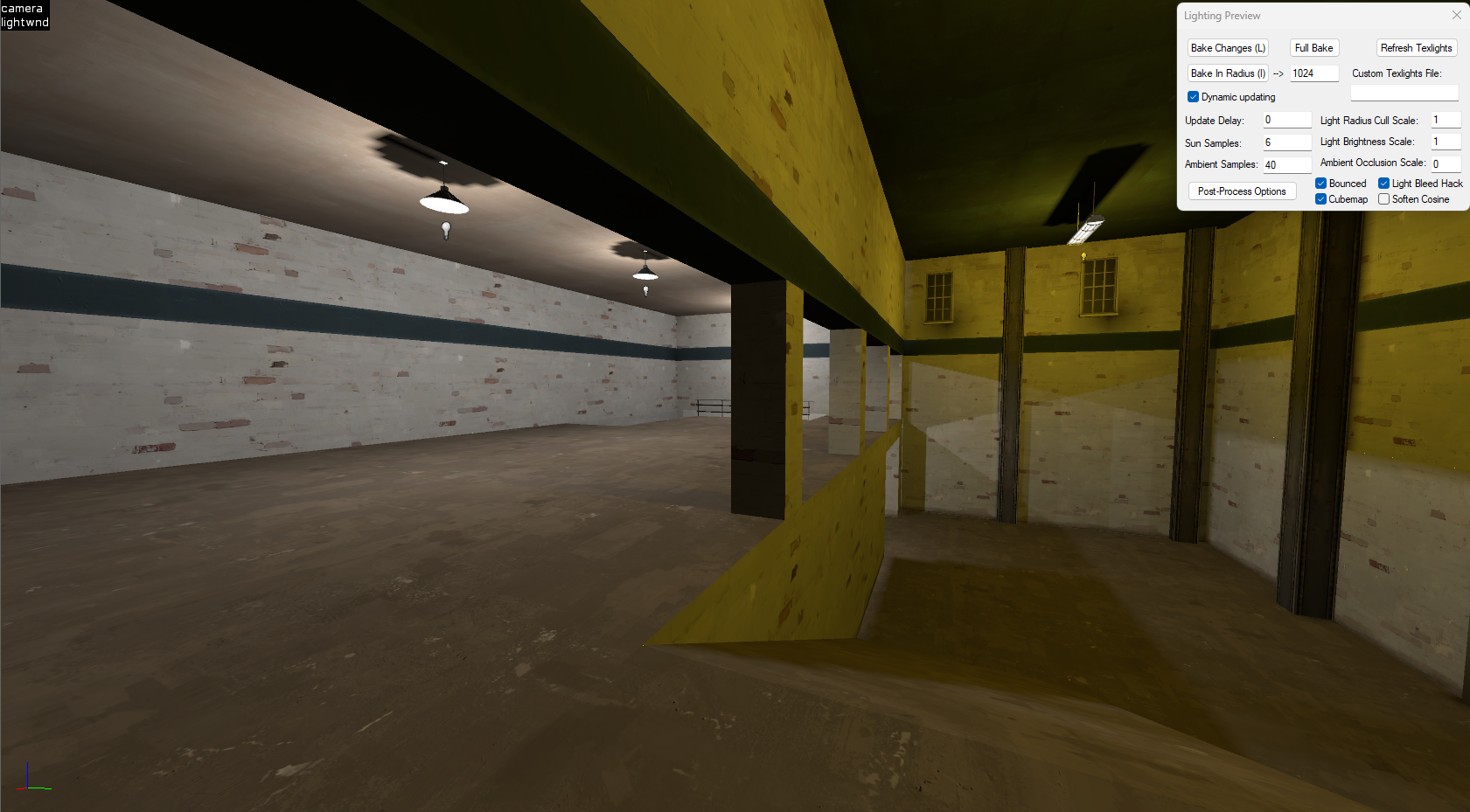
When working in Hammer, achieving good lighting can be one of the most time-consuming parts of level design. Traditionally, you had to fully compile your map to see how light sources actually affect your environment, a process that could take several minutes or even hours for complex scenes. The Preview Lighting plugin completely changes this workflow by allowing you to visualize lighting directly in the editor, vastly quickening workflows that used to rely on repeated compiles.
Step 1: Enabling the Plugin
First, open your map in Hammer and go to the plugins menu. From there, locate and enable the Preview Lighting plugin. Once active, you can enable the lighting preview mode by changing the camera type of the 3D viewport to, giving you access to lighting preview options.
Step 2: Setting Up Your Lights
Place your standard Source engine light entities such as light, light_spot, and light_environment throughout your map. Adjust their brightness, color, and falloff radius as usual. The plugin reads these properties and uses them to generate a real-time approximation of how your lighting will appear after a full compile.
For example the scene below is being lit with the preview lighting plugin:
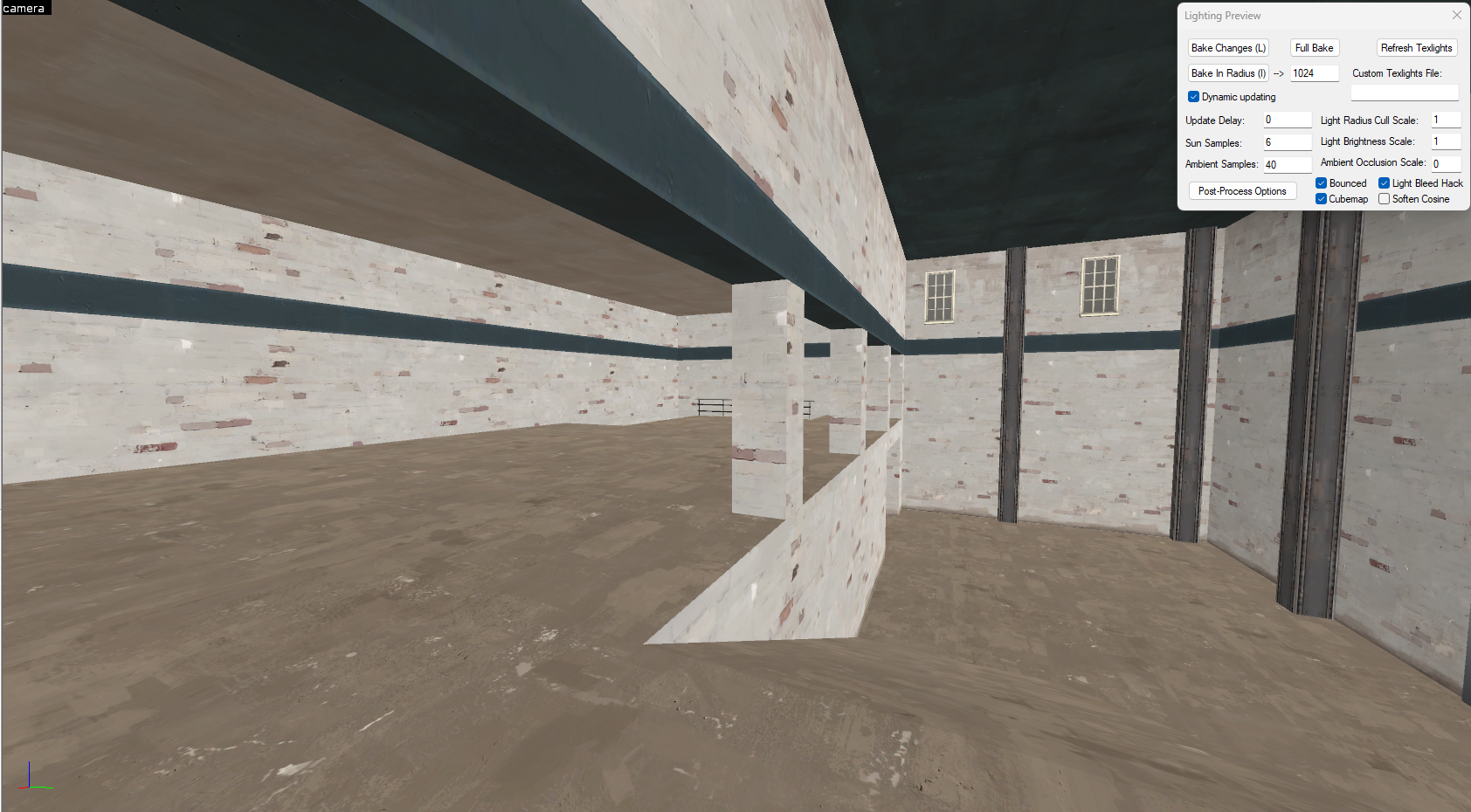
Step 3: Using the Preview Mode
Click the “Preview Lighting” button to enable the simulation. Your viewport will instantly refresh with a rough render of your lightmaps. This doesn’t represent the final baked lighting perfectly, but it’s accurate enough to judge brightness levels, color balance, and shadow placement without needing to compile. You can tweak lights interactively, move them, change values, and immediately see the results.
Step 4: Optimizing for Final Builds
When you are happy with your scene’s look, you can perform a full lighting compile. Keep in mind that smaller lightmaps or more detailed lighting will produce higher-quality results but can also increase file size significantly. The preview helps you strike a balance early in development, saving countless compile iterations.
Step 5: Workflow Benefits
By using the Preview Lighting plugin, you can refine your map’s atmosphere directly inside Hammer. It is an essential tool for anyone working in the Source pipeline who wants faster iteration, better control, and a much smoother lighting workflow overall.