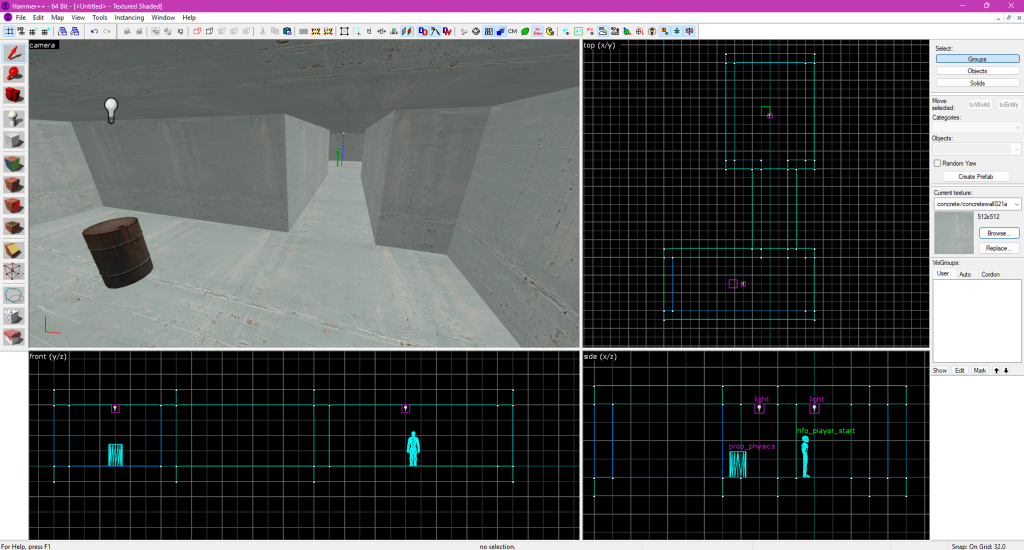
Hammer is the map editor for Half-Life 2, allowing users to design levels and environments for it and other Source-engine games. Below is a quick guide to the basic controls and how to create a simple map with two rooms, a hallway, and a physics prop.
1. Basic Hammer Controls
Navigation:
- Move Camera: Right-click and drag to pan.
- Zoom In/Out: Mouse wheel.
- Rotate Camera: Hold middle mouse button.
Selection Tools:
- Select Object: Left-click on an object to select it.
- Move Object: Select the object and use the arrow keys or drag it with the mouse.
- Scale Object: Select the object, hold “Shift,” and scale using the handles.
- Rotate Object: Select the object and press “Ctrl + E” to rotate.
Object Creation:
- Create Brush: Use the “Block Tool” (Shift + B) to create a basic geometry shape (cube, wall, etc.).
- Entity Tool: Press “Shift + E” to place entities like lights, spawn points, and props.
Views: Hammer has four default views—3D, top, side, and front. You can switch between these views with the tabs at the top of the editor.
2. Creating a Simple Map with Two Rooms and a Physics Prop
Step 1: Create the First Room
- Open Hammer and create a new map.
- Use the Block Tool (Shift + B) to create a simple rectangular brush (for the walls of the room). In the top, side, and front views, define the dimensions of the room.
- Select the brush and press Ctrl + T to convert it into a “func_detail” (so it doesn’t block visibility calculations).
- Add a Player Spawn entity: Press Shift + E, select “info_player_start” from the entity list, and place it in the first room.
Step 2: Add Lighting
- Place a light in the first room by selecting Entity Tool (Shift + E), choosing “light” from the list, and placing it inside the room.
Step 3: Create a Hallway and Second Room
- Use the Block Tool (Shift + B) to create a simple hallway leading into a second room. The hallway should connect to the first room via a door or opening.
- Define the dimensions of the second room as you did for the first one.
Step 4: Add a Physics Prop
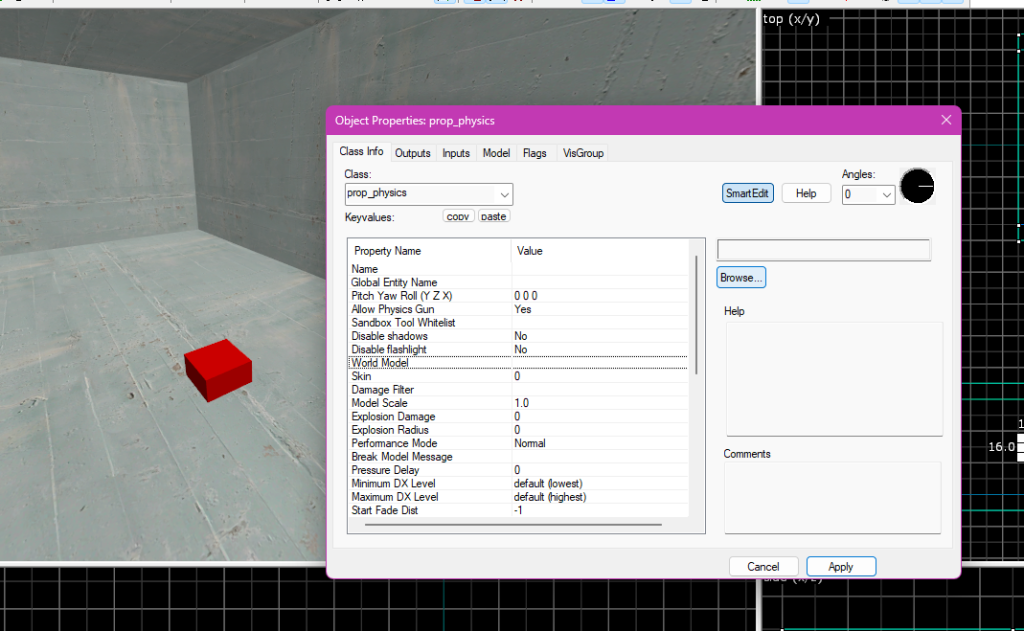
- To place the oil drum prop, go to Entity Tool (Shift + E), select prop_physics, and choose the oil drum model (“models/props_c17/oildrum001.mdl”).
- Place the prop inside the second room and adjust its position.
Step 5: Sealing the Map
- Make sure all the brushes are sealed, and there are no gaps between the walls, ceiling, and floor.
Now, you have a basic map with a player spawn, light, a hallway, and a physics object (the oil drum). You can compile the map (F9) to test it in the game!